Hello Kitty Party Land - Game Manual
News, Guide
20 min read

Screenshots are from the Nintendo Switch™ version.
Nintendo Switch is a trademark of Nintendo.
SUMMARY
Controls
Basic Controls
Control schemes for each controller can be configured in System Settings. This manual displays default inputs for a horizontal Joy-Con™ controller.
Horizontal Joy-Con™ Controls
- [Stick] Move Player, Cursor, etc.
- [Right Button] Interact with Character/Object, Confirm Selection
- [Bottom Button] Jump, Return to Previous Menu
- [Top Button] View Game Pad
- [Left Button] View Sticker Book, Map
- [+] / [-] (Hold) Open Pause Menu
- [SL] Change Camera
- [SR] Use Camera
Two Joy-Cons™/Pro Controller Controls
- [Left Stick] Move Player, Cursor, etc.
- [A] Interact with Character/Object, Confirm Selection
- [B] Jump, Return to Previous Menu
- [X] View Game Pad
- [Y] View Sticker Book, Map
- [+]/[-] (Hold) Open Pause Menu
- [L] Change Camera
- [R] Use Camera
Pause Menu
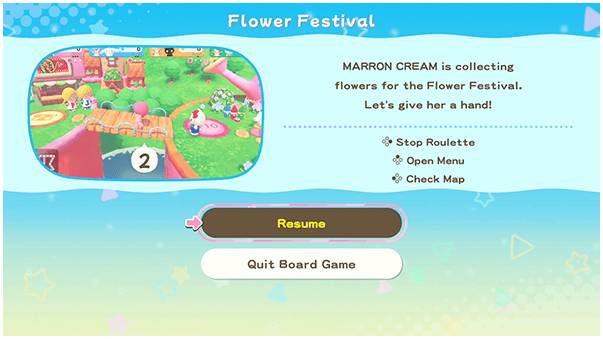
During the board game, press and hold either + or - to display the Pause Menu. From there, you can choose to review the controls and rules or end the game.
How to Play
Main Menu
From here, you can decide the number of players and start a game. You can play with online friends as well.
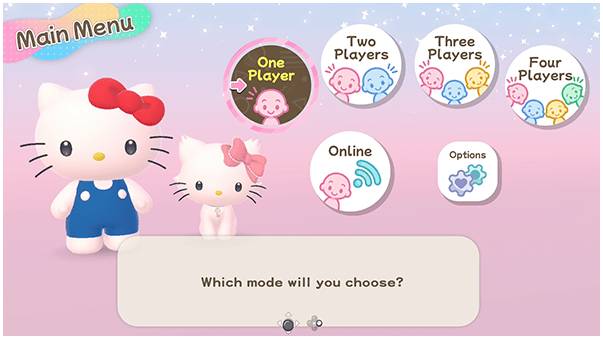
- 1-4 Player Game Using one main controller, choose the number of players to start the game.
- Online Online play is available for 2-4 players in a game.
- Options Adjust sound settings, check the manual, or view the staff credits, etc.
Before You Play
After selecting the number of players, there are a few more things to set up before you can enter Party Land.
Difficulty Level
Choose from Easy to Super Hard to set the difficulty of the minigames.
Dress-Up
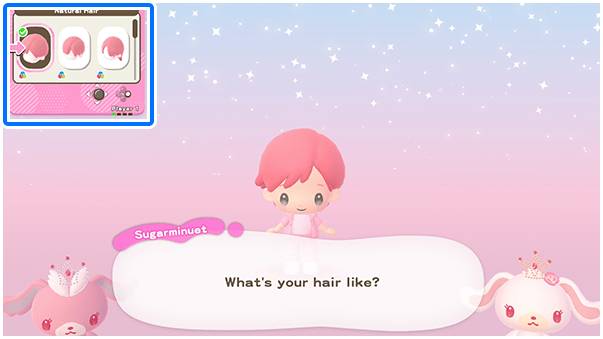
Customize your character's appearance. Choose the eyes, hair, eyebrows, and skin tone.
Partner Selection
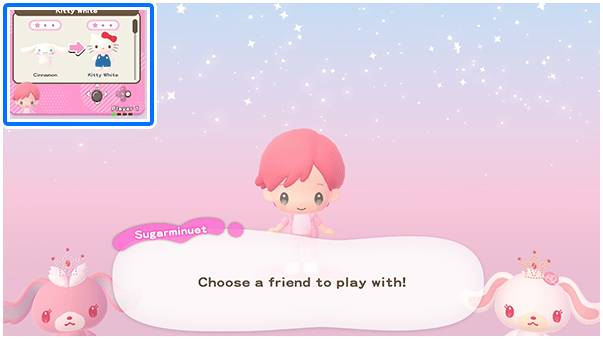
Pick a partner to play with in Party Land.
If you want to change anything later...
After starting the game, you can change your appearance at the Make-Up Salon on the 3rd floor of the Shopping Mall. You can change your partner at the Partner Room in the Photo Studio. Difficulty can be re-selected each time you start the game.
Play with Friends
You can start a game with up to 4 players on the same console from the main menu. Alternatively, 2-4 people can play together using an internet connection by selecting 'Online' from the menu.
You can only play online with users registered as Friends.
Note that a paid Nintendo Switch Online membership is required to use this feature.
Hosting
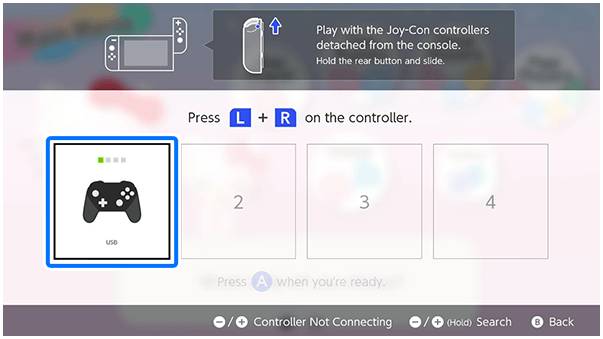
When playing offline, controller 1 is set as the host. When playing online, the player who created the room becomes the host. During gameplay, the host is in charge of the following actions:
- Menu selections
- Camera usage
- Opening the sticker book
- Entering/exiting buildings
- Starting the board game, minigames, Melody Cake, Poster Studio, etc.
- Pausing the game
Adding other players to the game
When choosing 2 Players - 4 Players, players other than the host can join by selecting the user profile they want to use or they can join as a guest.
Each player's name will be the same as their user profile.
Starting an Online Game
When playing online, one player must create a room for others to join.
Creating a Room (Hosting)
When a player selects Create Room from the menu, that player will have to decide the settings of the room and then wait for others to join. Once all players have joined, you can start the game.
Searching for a Room (Non-Host Players)
Players other than the host must select Search for Room, then select the room they want to join from a list and wait for the game to start.
Passwords
If the host sets a password on a room, only players who know the password may join. The password is a four-digit number of your choice.
Remember to share the password with the other players!
Points to Remember for Online Play
- When playing online, please treat other players with respect and refrain from unsportsmanlike or illegal conduct.
- Please check with your internet service provider before connecting online as they may implement additional network fees or restrictions.
- When using a wireless connection, ensure that there are no other devices nearby that may cause interference, such as microwave ovens.
- Please refrain from disconnecting mid-game.
- Ensure that you have enough time to finish before starting a game.
Party Land
The setting for this game is Party Land, a place where you can have fun alongside Sanrio characters. You can enjoy games, shopping, stickers, photography, and much more.
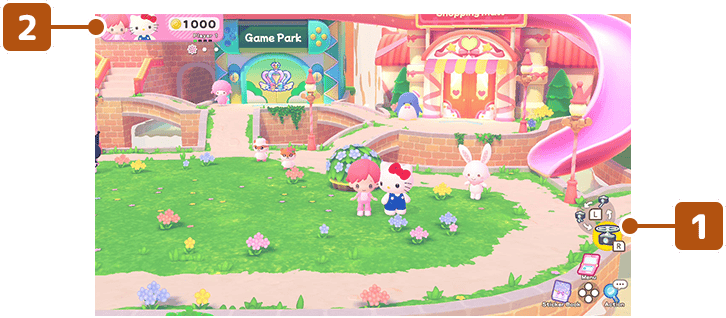
- Camera
You can change cameras with [SL]. Player Info (Game Pad)
The controllers are arranged by port number from left to right.
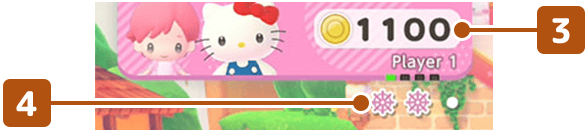
- Coins
You can earn coins based on results in the board game and other modes.
You can spend your coins at the Shopping Mall. - Waterwheel Tickets
Waterwheel Tickets are obtained after a certain amount of time passes. These tickets can be used to draw prizes at the Waterwheel.
Hometown Activities
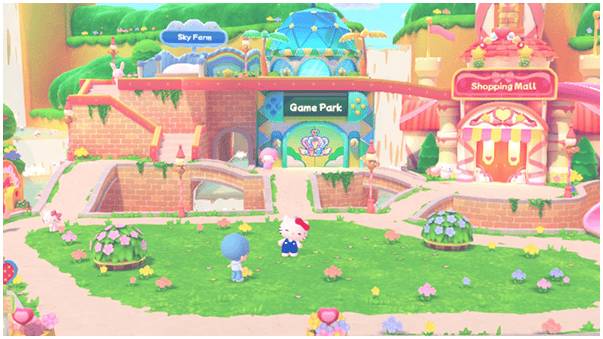
You can pair up with a partner character and freely explore Hometown. Press [Right Button] to interact with objects or characters in front of you. You can also start a board game or minigame here.
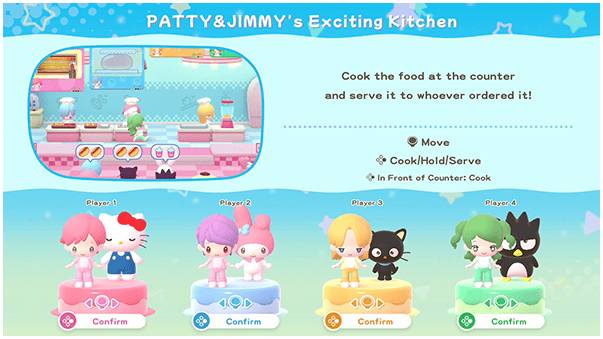
Minigames
Everyone works together to clear these games. After checking the rules carefully, select a partner to play the game with.
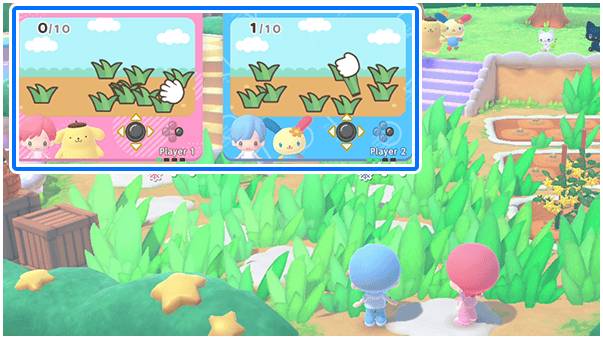
Petit Games
These are games for a solo player to play on the Game Pad at the top of the screen. Other players can act freely while the game is active.
Hometown Facilities
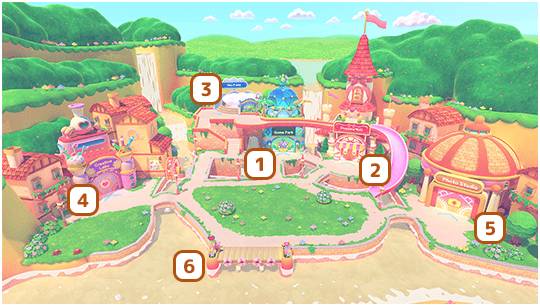
The number of usable facilities in Hometown will increase as you progress through the game.
- Game Park: You can play various games here.
- Shopping Mall: Enjoy shopping at different stores here.
- Sky Farm: You can play a variety of Petit Games at this garden above the clouds.
- Creative Labo: You can make music with the Melody Cake or make designs at the Poster Studio. You can also try the Labo Puzzle to earn coins, stickers, or tools.
- Photo Studio: Choose from a variety of backdrops and take photos.
- Exit: You can return to the title screen from the dock.
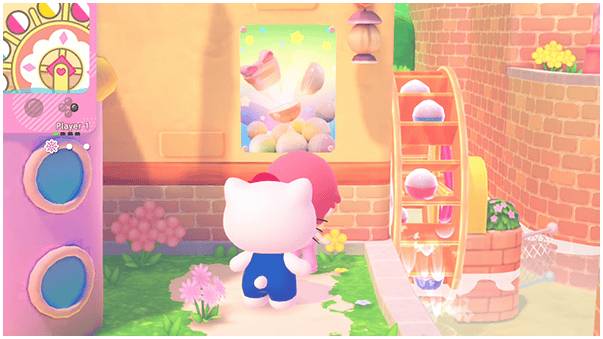
Waterwheel
Use Waterwheel Tickets to draw for prizes at the Waterwheel next to the Creative Labo. You could win coins or even special hairstyles.
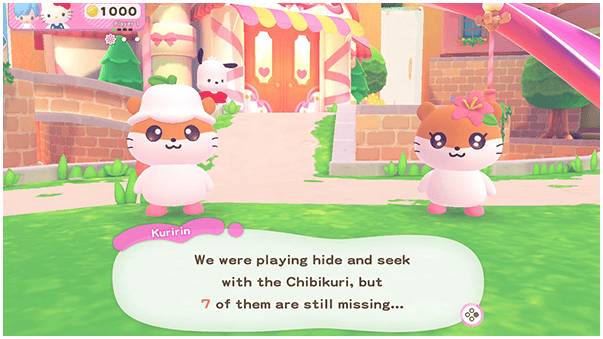
Hide-and-Seek
In Hometown and other areas, your friends may ask for help finding someone. Give them a hand by using the drone camera. You can get Waterwheel Tickets as a reward.
Minigame Corner
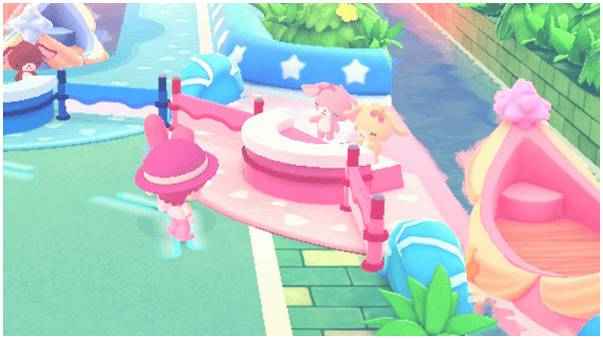
The rightmost counter at the Game Park takes you to the Minigame Corner. You can freely play any of the minigames here. Look for the ones with the present icon—you just might meet someone new!
Crown Icons
The 3 crown icons tell you how difficult the game is. There's Easy, Medium, and Super Hard. The difficulty may change depending on your performance.
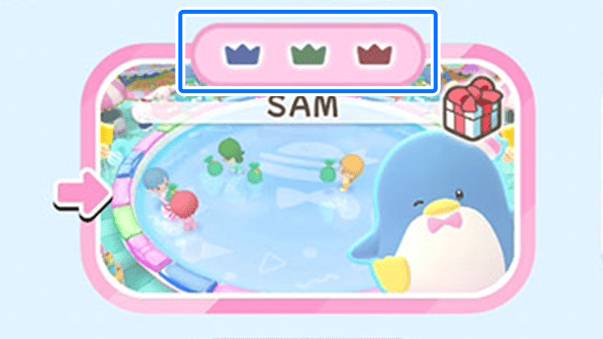
Clear all difficulty levels, and you might get a special sticker!
(Look for the blue present icon.)
Game Pad
Opening the Game Pad
In Hometown, press the [Top button] to open the Game Pad to access its three menus.
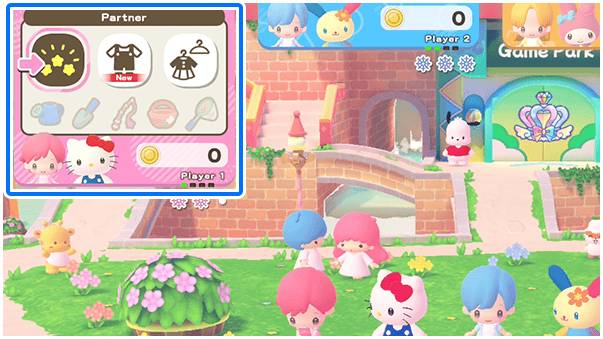
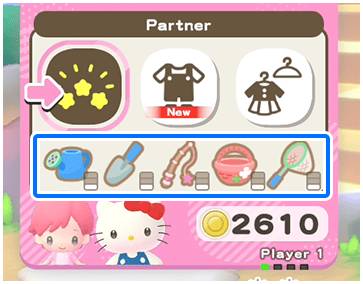
Inventory
This menu displays the tools you have in your inventory. (Starting from the left: Watering Can, Shovel, Fishing Rod, Fruit Basket, and Bug Net). The gauge at the bottom right shows the tool's current ability level. As it increases, so does the gauge.
Partner Menu
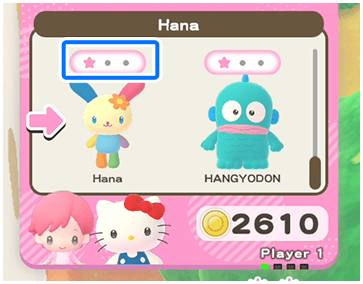
You can view the list of available partner characters. If you've received any special clothing, you can equip it here.
Friendship Level
The ★ icons above each character shows their friendship level. This increases a little bit each time you play or chat with them.
If your friendship level is high enough, you might receive some special clothing!
Clothing Menu
Outfits can be changed.
→ Check the Dress up section for more info.
Favorites Menu
Outfits saved as favorites can be easily accessed here.
→ Check the Dress up section for more info.
Stickers
Collecting Stickers
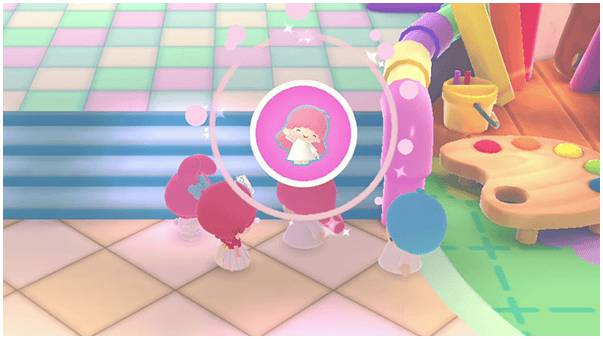
Talk with friends and play minigames to collect stickers. You can view collected stickers in the Sticker Book.
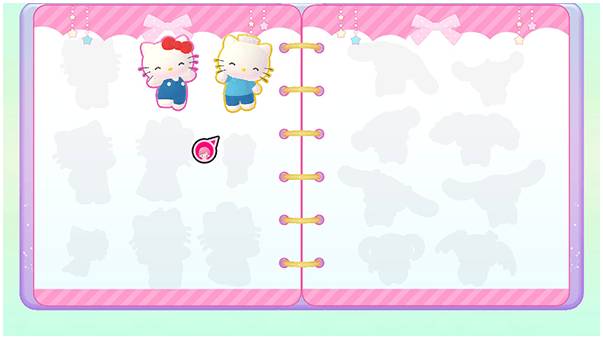
Sticker Book
Press [Left Button] to open the Sticker Book, and move the cursor over a sticker to view its name.
Press [SL] or [SR] (or [Right Button] over an empty space) to turn the page.
Applying Stickers to T-Shirts
If you have a Character T-Shirt top, you can put stickers on it. Open your Sticker Book, move the cursor over your chosen sticker, and press [Left Button] to paste.
The Character T-Shirt is an early purchase bonus. Enter your download code on the Nintendo eShop to redeem.
Dress-Up
You can purchase clothing and accessories at the Shopping Mall. Change up your style however and whenever you want!
Shopping
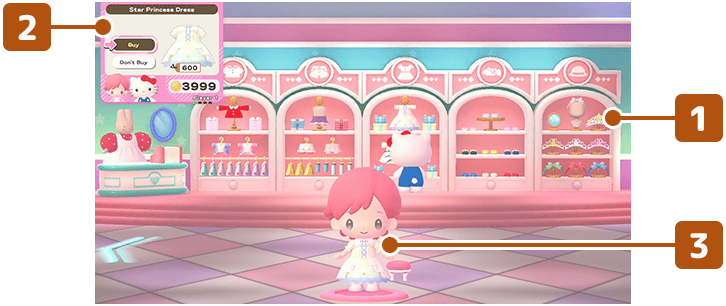
At stores, you control your partner to buy merchandise. You need to spend coins to purchase items, but you can try on clothing before you buy. At the Make-Up Salon, you can change your appearance for free!
- Store Shelves
If you stand in front of a shelf and press [Right Button], the item will be shown on the Game Pad. Merchandise
The number at the bottom is the price of the item. Items you already have will have a check mark instead
This icon means that there are multiple colors available for a style of dress, accessory, etc.
- Trying On Clothes
Just select a piece of clothing to see how it looks on you.
Changing Clothes
From the Clothing menu on the Game Pad, you can change the clothes you wear as you like!
The color is chosen after choosing the style.
If you wear a uniform, you can't wear tops or bottoms with it.
Sets
You can register your favorite clothing combination as a set for quick access. Select Favorites from the Game Pad menu.
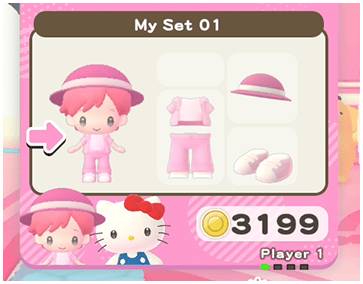
- Changing Clothes Pick a registered set to instantly change into it.
- Registering Sets You can register the clothing you're currently wearing as a set. You can save up to eight sets.
- Delete a Set You can erase a set to free up space.
Special Sets
Become good friends with someone, and you may receive a special clothing set.
To access it, open the Partner menu on the Game Pad, navigate to Friends, and select the set.
Special clothing can be found at the cave.
Camera
Photos can be taken anywhere you like! The photos are saved to your system storage.
Taking Photos
There are three camera types that each controlled differently. Use [SL] to change the camera, and [SR] to change the camera mode.
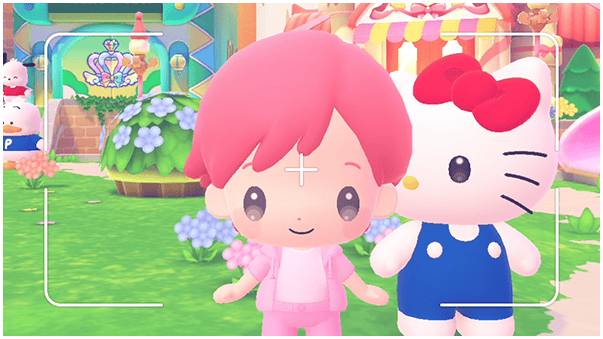
Tripod Camera
A front-facing camera. Zoom out or in with [SL] and [SR], and start the countdown with [Right Button].
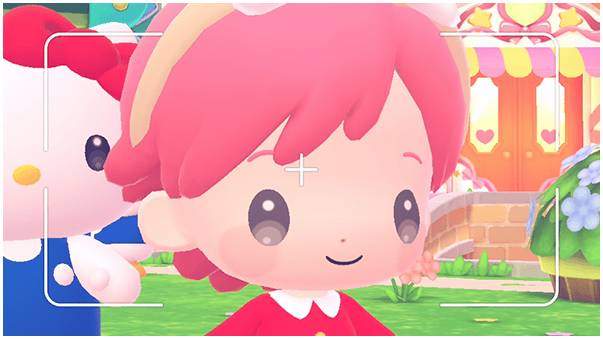
Selfie Stick
A camera for taking selfies. Zoom out or in with [SR] and [SL], and use [Stick] to adjust the angle. Start the countdown with [Right Button].
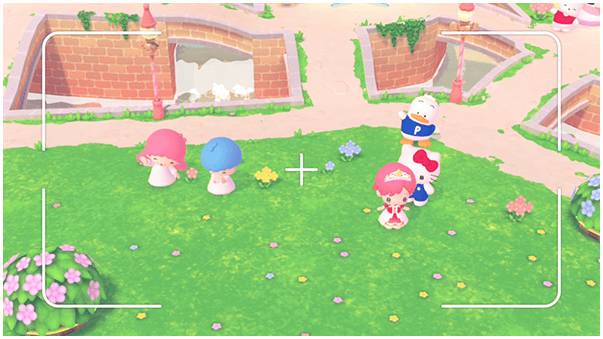
Drone Camera
A camera for capturing various angles and viewpoints. Zoom out or in with [SL] and [SR], and use [Stick] to adjust the position. Start the countdown with [Right Button].
Other Controls
- Camera Target If you press [Left Button], you can pick a target to focus the camera on.
- Change Mode Press [Top Button] to change drone modes.

In  this mode, the camera rotates around the focus when you use [Stick].

In this mode, [Stick] moves the camera freely instead.
Countdown
During the countdown, you can move the player with [Stick], look into the camera with [Top Button], jump with [Bottom Button], and emote with [Left Button].
Make sure everything is in position when the timer hits 0!
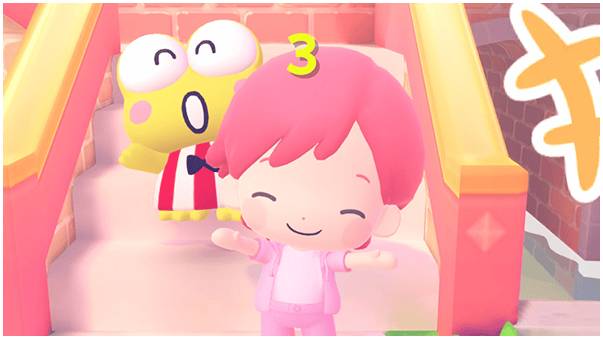
Photos at the Photo Studio
At the Photo Studio, you can take a commemorative photo using any of the minigames you have played as a backdrop.
Play a bunch to get more backdrops!
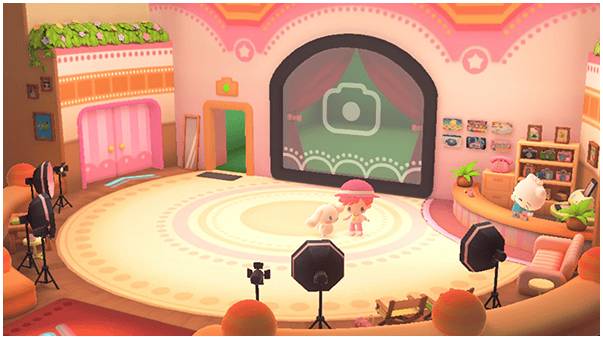
Board Game / How-To
You can play the Board Game at the Game Park. Work together with up to four players to collect what you need!
The 3 Board Games
Talk to the receptionist at the center of the Game Park to start the board game.
There are three different boards, with their own unique objectives.
If you play Blooming Flower Festival, you'll be able to choose Badtz-Maru as a partner!
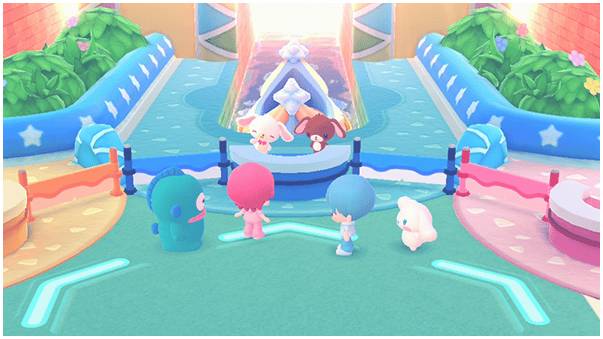
Blooming Flower Festival
Gather flowers so Marroncream can start the festival!
Tropical Twilight
Tiran and friends are trying to grow fruits. Scale the mountain to gather droplets for them!
Sparkling Neon Night
Goropikadon are putting on a live performance. Gather sparks to power their show!
The Game Screen
Here is an example of a game in progress in the Blooming Flower Festival.
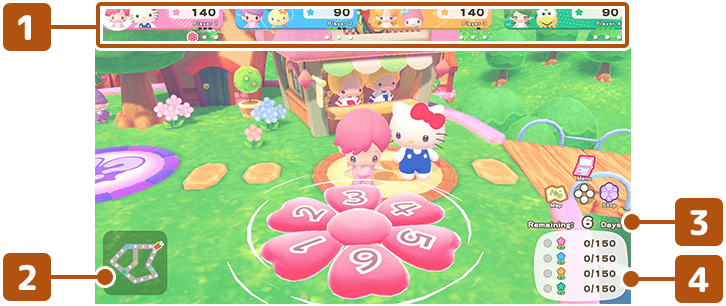
- Player Info
The number on the right of the Game Pad shows the amount of flowers you currently have.
Any items a player is holding are shown below the player's name. Mini Map
The space a player is standing on has a different color.
Minigame spaces are represented by this icon.
The Delivery Space is shown with a triangle.
- Days Remaining
- Flowers Delivered
Shows the number of flowers delivered and the remaining amount needed.
Flowers are exclusive to Blooming Flower Festival. In Tropical Twilight you collect droplets, and in Sparkling Neon Night you collect sparks.
Checking the Map
During your turn, press [Left Button] to open the map. Use [Stick] to move it around and check the layout.
Board Game / Objectives
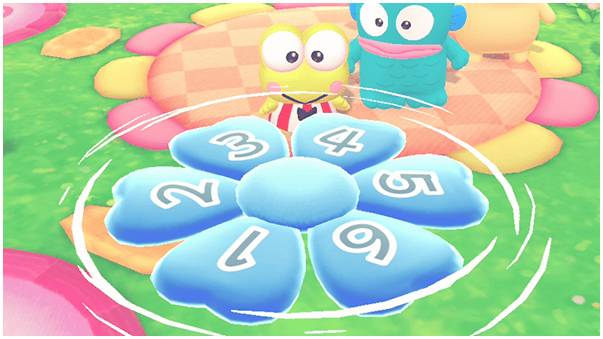
During your turn, spin the roulette wheel and move the number of spaces that comes up.
The day ends once everyone has taken a turn.
Spin the Roulette and Move
Press [Right Button] to stop the roulette.
You must move the same number of spaces as the number that you roll. Spaces you land on or pass by can trigger different effects.
If the path splits, use [Stick] to choose and [Right Button] to confirm your decision.
Minigame Time
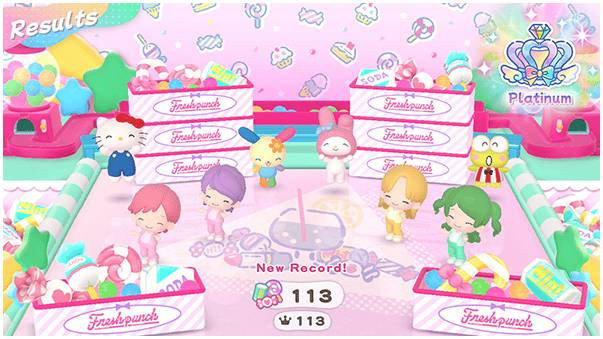
When a player stops on a Minigame Space, everyone gathers to play a minigame. Play well to earn flowers/droplets/sparks.
Petit Game Time
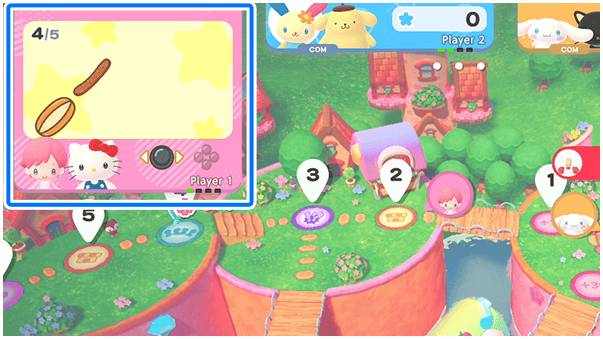
When a player decides to work at a Shop Space, etc., a Petit Game begins for that player.
While a Petit Game is active, other players still proceed about their turns as normal.
If the Petit Game is not finished by the player's next turn, that turn will be skipped, so be careful!
Using Items
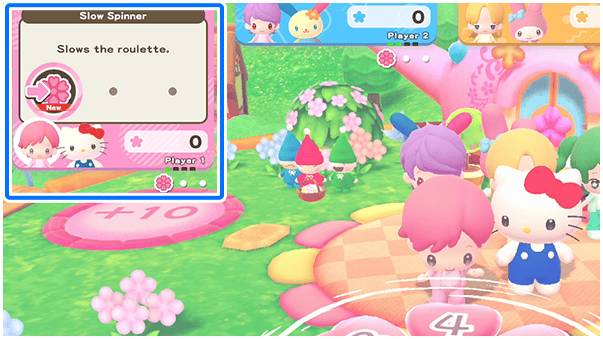
By pressing [Top Button], you can open the Game Pad and check your items. Move the cursor over one and press [Right Button] to use it.
You can use some items during another player's turn to help them out, so keep that in mind when deciding when to use them.
Delivering the Goods
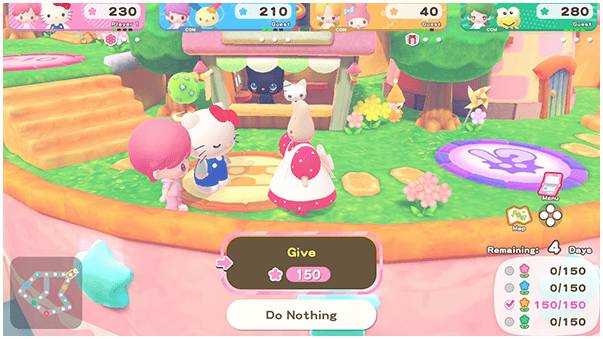
The flowers/sparks/droplets you've collected can be dropped off at the designated delivery spaces. Select Give or Charge to do so.
Delivery Rules
The delivery quota and time limit will change based on difficulty level. The following text assumes Medium difficulty is chosen.
- Blooming Flower Festival Each player needs to gather 150 flowers. There's only 1 Delivery Space, but on some days Marroncream will come to pick them up herself.
- Tropical Twilight There are 4 Delivery Spaces, requiring 150 droplets each.
- Sparkling Neon Night There are 3 Delivery Spaces, requiring 200 sparks each to charge.
Endgame
Once you've fulfilled the delivery quota, the game ends.
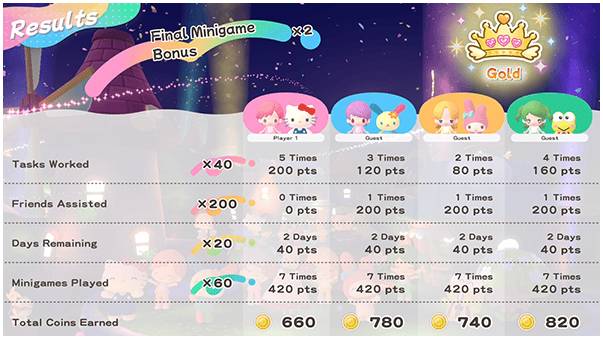
The results screen is shown after the ending sequence, and each player will earn coins based on their results.
If you do well on the final minigame, you'll receive a bonus (Last Game Bonus)!
If Time Runs Out
If the number of days remaining hits 0, the game will end.
You'll still earn coins based on results.
Board Game / Spaces
Normal Space

Shop Space
You can work here and play a Petit Game to receive flowers/droplets/sparks. You can also spend flowers/droplets/sparks to trade for items.

Minigame Space
If someone steps here, a minigame will start.

Challenge Space
If you stop here, a Petit Game will start. Clear it, and you can continue challenging the Petit Game to earn even more flowers/droplets/sparks. Fail, and you'll receive a penalty to what you currently have.
Item Space
Stop here to get a helpful item.
Special Spaces
These spaces only appear on certain maps.
Plus Space (Blooming Flower Festival)
Stop here to gain the same number of flowers as the number shown on the space.

Fountain Space (Tropical Twilight Festival)
Stop here to get blown away to another space.
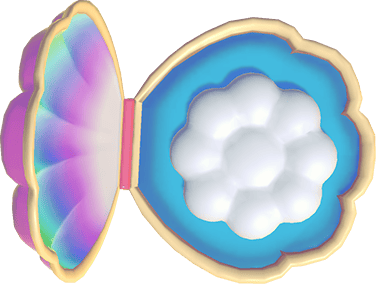
Shell Space (Tropical Twilight Festival)
Stop here to move up the mountain.

Arrow Space (Tropical Twilight Festival)
Stop here to go back to the beach.
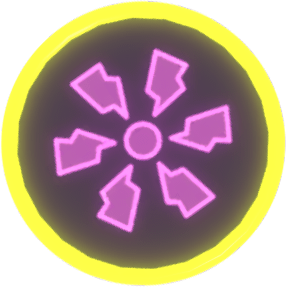
Roulette Space (Sparkling Neon Night)
Stop here to get another spin at the roulette.

TV Game Space (Sparkling Neon Night)
If you step here, you'll pay fee of 10 sparks to start a Petit Game. Win and you'll gain more sparks, but if you fail, you'll lose some that you already have.
Melody Cake
At the left end of the Creative Labo is the Melody Cake. It's an odd device that plays your decorations as sounds.
Work together to make a nice melody!
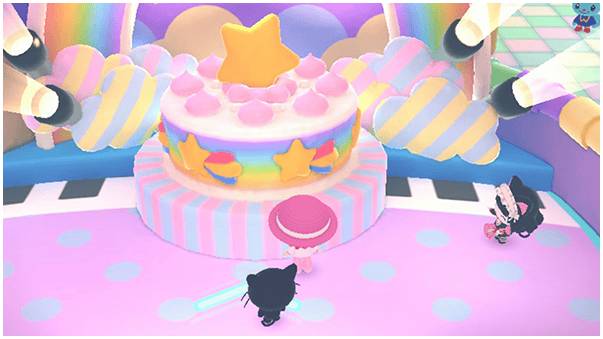
Cake Catalog
The cakes and melodies you make can be saved in the Cake Catalog.
There are 4 catalogs, and each can save up to 16 cakes. There are also sample catalogs that you can try out.
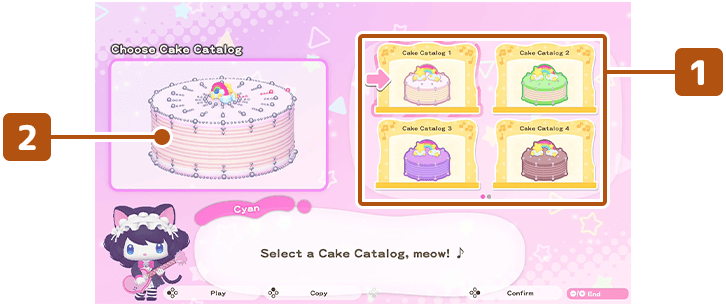
- Cake Catalog
Select a catalog and press [Top Button] to copy the contents. Choose a different catalog and press [Right Button] to paste and overwrite the contents. You can copy sample catalogs too. - Selected Cake
Choosing a Cake to Make
Select a Cake Catalog, then select a cake to start creating.
On the cake selection screen, you can copy and paste cakes within the same catalog.
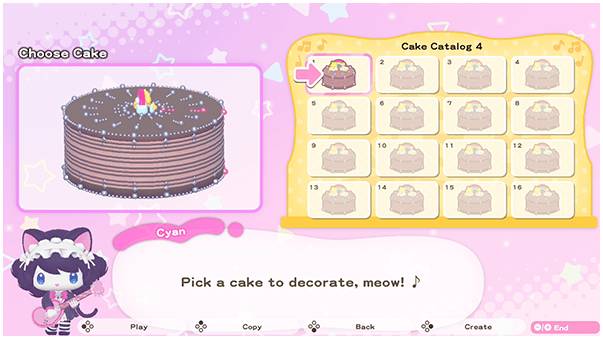
Playing the Cakes
Press [Left Button] to play all of the cakes in the catalog in order.
You can try combining multiple cakes to make one continuous melody.
Melody Cake / How-To
The Cake Screen
Decorations can be placed on both the top and sides of the cake.
The top controls the percussion, and the sides control the melody. Press [Bottom Button] to swap between the two.
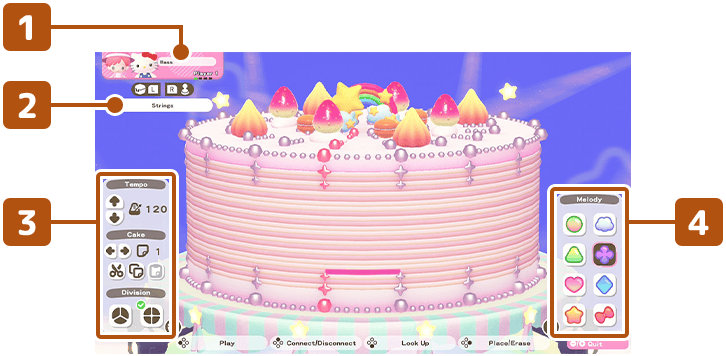
- Name of Instrument
- Menu Explanation
- Tool Menu
- Instrument Menu
Use [SL] and [SR] to switch between the Tool Menu and the Instrument Menu. Press [Bottom Button] to return the cursor to the cake.
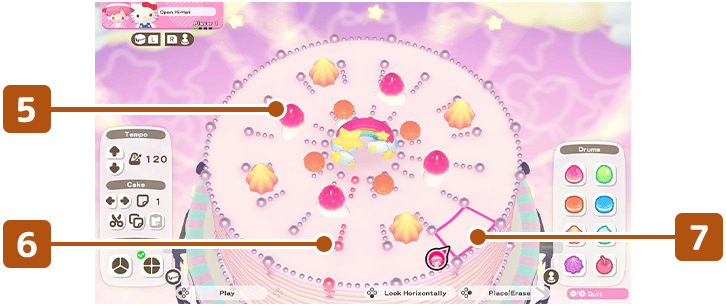
- Decoration
The type of decorations you place depends on the chosen instrument, and each one plays a different sound.
You can place up to four decorations on the top and on the side of each piece. However, you can't double up on the decorations. - Melody Starting Position
The melody starts playing back from the gap between the different colored pieces. - Cursor
Press [Right Button] to place a decoration where the cursor is. Press it again to delete.
Connecting Melodies
If you line up two copies of the same melody side-by-side, you can connect them for a longer tune.
Press [Top Button] on the right-side melody to connect it to the one on the left.
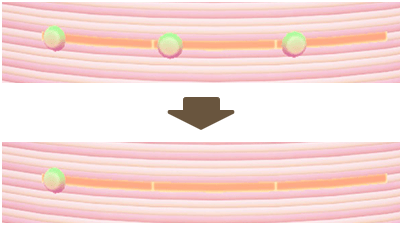
Cakes and Melodies
The cake is cut into 16 pieces for 4/4 time, or 12 pieces for 3/4 time. Each piece of cake represents one measure.
The pitch of the notes changes depending on where it's placed on the piece.
Tools/Tempo Menu
Press [SL] to access the Tools/Tempo Menu and change the following settings.
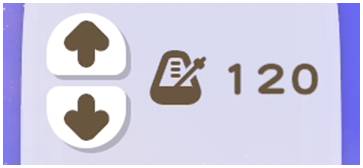
Song Tempo
In the tempo menu you can use the up/down buttons to change the song's tempo. Bigger numbers mean a faster song.
Use Cake Tools
In the Cake menu, you can do the following:
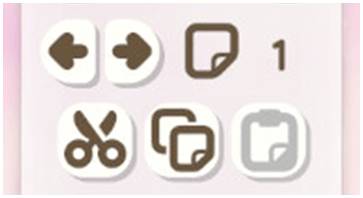


Move between cakes within the same catalog.
The number on the right is the placement in the catalog.

Copy the selected cake's decorations and clear the cake.

Copy the selected cake's decorations.

Paste copied decorations onto the selected cake.
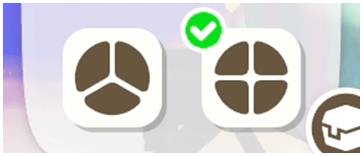
Change Time Signature
You can change the way the cake is cut to switch between 4/4 and 3/4 time.
Listening
Press [Left Button] to loop the current playback. You can decorate while listening to adjust by ear.
Poster Studio
At the right end of the Creative Labo is the Poster Studio. You can place various stamps and create a picture with everyone.
Sketchbook
You can save your pictures in a Sketchbook. There are four Sketchbooks, and each can save up to 16 pictures. There are also sample pictures to take a look at.
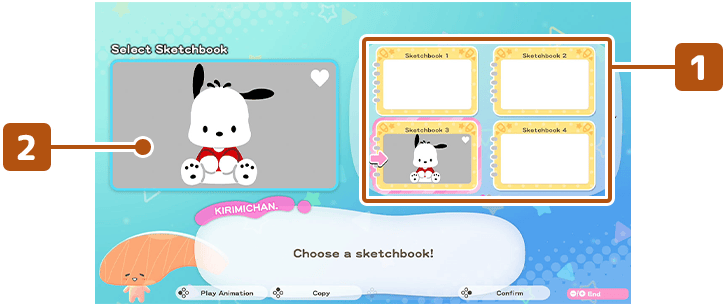
- Sketchbook
Select a Sketchbook and press [Top Button] to copy the contents. Choose a different Sketchbook and press [Right Button] to paste and overwrite the contents. You can copy sample Sketchbooks too. - Contents of Chosen Sketchbook, etc.
Animation Playback
Select a Sketchbook and press [Left Button] to display its 16 pages sequentially (Play Animation). You can design the pages to look like one continuous animation!
While playing an animation, you can also set a song you've made on the Melody Cake as the background track.
The cake that plays corresponds to the index number of the Sketchbook. For example, Sketchbook 1 will play Cake 1, and so on.
Choosing a Page
Select a Sketchbook, then select a page to start creating.
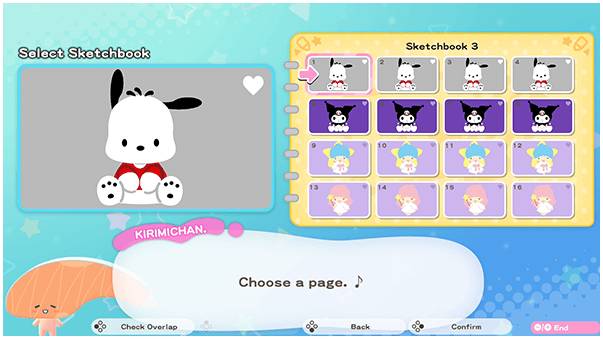
Checking the Overlap
Press [Left Button] on the page list to show the order of overlap for that page's layers. It's handy when you want to check how it's structured.
Full Screen Display
Press [Stick] while an animation is playing or while checking overlaps to view in full screen. Press [Stick] again to minimize.
Poster Studio / How-To
Overlapping the Layers
At the Poster Studio, you can create a picture by layering various stamps. Each individual stamp is referred to as a layer.
Not only can you place layers on top of one another, but you can also insert new layers beneath or between others. You can also modify layers that have already been placed.
The Poster Creation Screen
The center area where you place the stamps is called the canvas, and there are menus on both sides.
Press [SL] or [SR] to switch between the color and stamp menus. Press [Bottom Button] to return to the canvas.
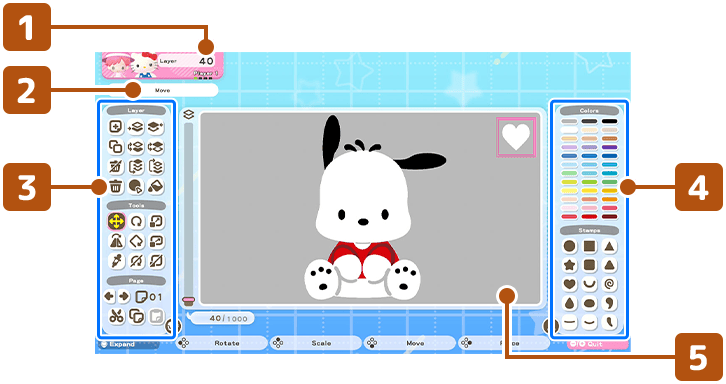
- Selected Layer's Index Number
- Menu Explanation
- Edit Menu
Press [SL] while highlighted to jump to the Layer/Tool/Page menus. - Color & Stamp Menus
This menu lets you change the color and shape of the stamps.
Press [SR] while highlighted to jump between color and stamp menus. Canvas
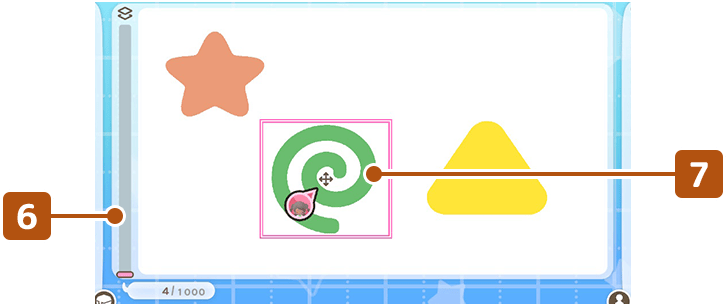
- Layer Gauge
You can check which layer is currently selected.
The color is the same as the player's representative color. - Stamp In Use
The cursor is at the center, and a square-shaped guide is displayed around the stamp.
Canvas Controls
There are three different control modes for the canvas cursor.
In each mode, [Right Button] is used to place a stamp.
Move
Press [Bottom Button] to enter move mode. Use [Stick] to move the cursor.
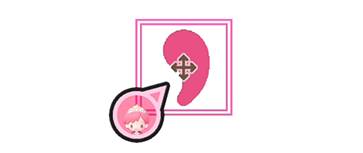
Scale/Free Scale
Press [Top Button] to enter scale mode. Use [Stick] to change the size of the stamp.
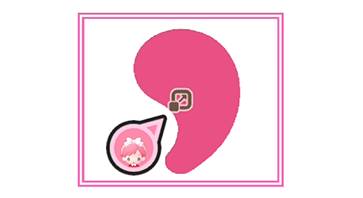
Press [Top Button] again to change to free scale mode. Move [Stick] horizontally to adjust the width, and vertically to adjust the height of the stamp.
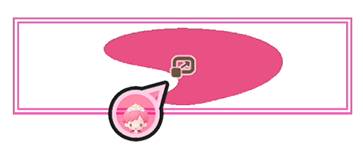
Rotation/Coarse Rotation
Press [Left Button] to enter rotate mode. Use [Stick] to rotate the stamp.

Press [Top Button] again to enter coarse rotation mode. In this mode, the rotation is fixed to intervals of 15 degrees.

Full Screen Canvas
Press [Stick] while the cursor is on the canvas to view the canvas in full screen. In full screen display, use [SL] and [SR] to switch between layers. Press [Stick] again to exit.
Poster Studio / Menu
Press [SL] on the poster creation screen to open the Edit menu and change the following settings:
Layer Menu

Insert a new layer above the selected layer.

Select the previous layer (below).

Select the next layer (above).

Copy the selected layer and paste it one layer above.

Swap the selected layer with the previous layer (below).

Swap the selected layer with the next layer (above).

Restore the last deleted layer.

Move the selected layer to the bottom.

Move the selected layer to the top.

Delete the selected layer.

Select a layer directly from the canvas.

Copy the color of a selected layer. Select another layer directly from the canvas to apply the copied color.
Tool Menu

Change the canvas cursor to move mode.

Change the canvas cursor to rotate mode.

Change the canvas cursor to scale mode.

Flips the selected layer horizontally (before scaling/rotation).

Change the canvas cursor to coarse rotation mode.

Change the canvas cursor to free scale mode.

Change the color of the selected layer to the color stored in the eyedropper.

Reset the rotation of the selected layer.

Reset the size of the selected layer.
Page Menu


Move between pages within the same Sketchbook.
The number on the right is the placement in the Sketchbook.
Copy the current page's image and clear the page.
Copy the current page's image.
Paste the copied image onto the current page.


All text, images, and illustrations are the copyright of Sanrio Co., Ltd. Unauthorized reproduction of any part of this site is prohibited.
© 2026 SANRIO CO., LTD. All rights reserved.
Hello Kitty Party Land is available on Nintendo Switch 2 and Switch
For more information about Hello Kitty Party Land check out the latest news!
Read next
-
HELLO KITTY
Step into a delightful world of fun in Hello Kitty Party Land, available now
Video
-
HELLO KITTY
Discover the charming activities awaiting in Hello Kitty Party Land
Video
-
HELLO KITTY
HELLO KITTY PARTY LAND brings all your favourite friends in one place, with digital pre-orders available now
Video